The gap between design and engineering is one of the most persistent sources of confusion in product teams. A designer hands off a Figma file. An engineer implements it. Six months later, the Figma file and the production code have diverged in seventeen small ways, nobody is sure which is right, and new team members don't know which source to trust.
That's the easy version of the problem. The harder version: even when the implementation matches the design exactly, there's no way to look at a Figma screen and understand what's happening in the backend when a user interacts with it. Which API does the search bar call? What service owns that API? What database is it reading from? What happens when the request fails?
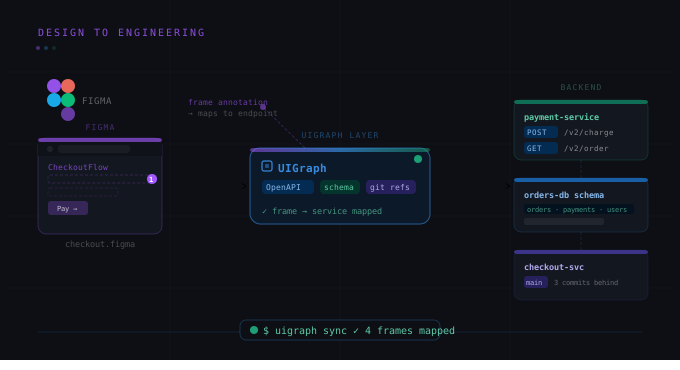
UIGraph fixes this by letting you use Figma screens as the starting point for navigable engineering documentation. Here's how to do it.
The core concept: Frames and Points
In UIGraph, a Frame is any visual — a screenshot, a Figma export, an architecture diagram. You upload it to a Map (a feature-level container) and it becomes an interactive canvas.
A Point is an interactive marker you place on a region of that Frame. An Implementation Point connects that region to an engineering artifact: an API endpoint from an OpenAPI spec, a service, a database table, a test case.
The result is a Figma screen where every interactive element is linked to its backend implementation. Click the search bar — see the /search endpoint. Click the checkout button — see the POST /orders spec, the OrderService that handles it, and the orders and order_items tables it writes to.
Step 1: Export your Figma screen
Start with the screen you want to document. In Figma, export it as a PNG at 2x resolution. You want enough fidelity to read labels and see the UI clearly.
For this walkthrough we'll use the getorbis.io dashboard — a fictional SaaS platform. Specifically, the payment setup screen where a user enters billing information.
Export: Select the frame in Figma → Export → PNG, 2x → Save as payment-setup.png.You don't need to export the whole Figma file. A single well-chosen screen that represents a meaningful interaction is more useful than ten screens with no Points on them.
Step 2: Create a Map and upload the Frame
In UIGraph, create a Map for the feature this screen belongs to. For getorbis.io, this would be "Billing & Payments."
Inside the Map, add a Frame and upload payment-setup.png. UIGraph renders it as an interactive canvas. At this point it's just an image — the interesting part is next.
Step 3: Add Implementation Points
This is where the connection between UI and backend happens.
Zoom into the payment form on the screen. You see: a card number field, an expiry field, a CVV field, and a "Save Payment Method" button.
Place an Implementation Point on the "Save Payment Method" button. You'll be prompted to link it to engineering artifacts. Link it to:
-
API: POST /billing/payment-methods (from your OpenAPI spec, synced via the CLI)
-
Service: Payment Service (synced from your .uigraph.yaml)
-
Database: payment_methods table (from your PostgreSQL schema import)
-
Test: save-payment-method smoke test (from your testPacks config)
Repeat this for the other meaningful interaction points on the screen. The card number field might point to your PCI compliance docs and the Stripe integration. The "Cancel" button might link to a Map Point that navigates back to the Billing Overview map.
Step 4: Handle UI state variants with Frame Groups
A payment form isn't a single state. It has at minimum: the default empty state, a loading state while the request is in flight, a success state, and an error state.
UIGraph's Frame Group Points handle this. Place a Frame Group Point on the form area. Inside it, upload separate Frames for each state variant:
-
payment-setup-loading.png
-
payment-setup-success.png
-
payment-setup-error.png
Each variant can have its own Points. The error state might have a Point on the error message that links to the error code documentation or the monitoring alert that covers it.
This is the part that never exists in wiki documentation. Engineers write "the form shows an error on failure" but there's no way to visualize what that looks like or click through to what triggers it.
Step 5: Sync from your repository
The Points you placed manually work fine, but the real power is when the engineering artifacts they link to stay in sync automatically. That's what the CLI does.
Add a .uigraph.yaml to your payment-service repository:
version: 1
project:
  name: getorbis
service:
  name: Payment Service
  category: Backend
  description: Payment processing, billing, and subscription management
  repository:
    provider: github
    url: https://github.com/getorbis/payment-service
  ownership:
    team: payments
    email: payments@getorbis.io
  integrations:
    slack:
      url: https://getorbis.slack.com/archives/C-PAYMENTS
apis:
  - name: payment-api
    type: openapi
    path: ./openapi.yaml
databases:
  - name: Payments PostgreSQL
    dbType: PostgreSQL
    dialect: postgres
    schemaPath: ./schema.sql
testPacks:
  - name: payment-smoke
    type: smoke
    testCases:
      - type: api
        title: save-payment-method returns 201
        order: 1
        operationId: savePaymentMethod
        expectedStatusCode: 201
        requestTemplate: '{"type": "card", "last4": "4242"}'
        isCritical: true
Run uigraph-cli sync in CI on merge to main. Now every time the payment service ships, the API spec, schema, and test metadata in UIGraph update automatically. The Figma screen you uploaded stays linked to current implementation — not a snapshot from six months ago.
Step 6: Add the Figma import step to your design workflow
For teams that ship design changes frequently, the workflow above has one friction point: you have to manually re-export and re-upload the Figma screen when the design changes.
The practical fix is to treat Frame uploads the same way you treat screenshot tests in your test suite: after a design is finalized and signed off for implementation, a developer exports the approved Figma screens and uploads them to UIGraph as part of the implementation kickoff. Not as a documentation afterthought — as the first step in implementation.
Starting from the Figma screen means you place your Points before you write the code, which has a useful side effect: it forces you to think through the complete implementation surface (which APIs, which services, which tables) before you start building.
What this looks like for a new engineer
Here's the payoff. A new engineer joins the getorbis.io team. On day two they need to understand how billing works.
Instead of reading a 40-page Confluence doc or spending half a day reading code, they open the "Billing & Payments" Map in UIGraph. They see the payment setup screen. They click on the "Save Payment Method" button and immediately see: the API spec for the endpoint, the service it belongs to, the database tables involved, and the smoke test that covers it. They click through to the Payment Service map and see the full architecture. They click on the payments table and see the schema.
Twenty minutes instead of three days. That's the engineering onboarding argument for connecting Figma to your backend through UIGraph.