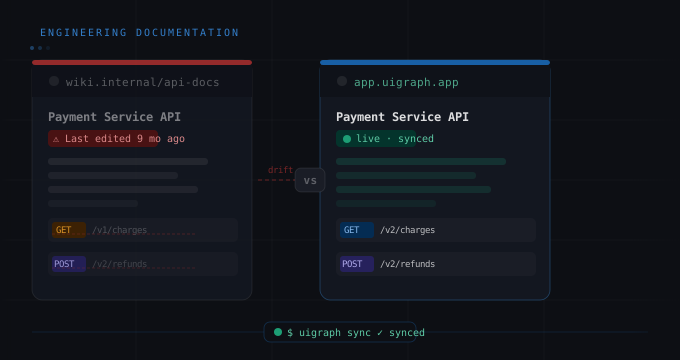
Database schema diagrams are one of those things every engineering team knows they should have and almost none of them keep up to date. The hand-drawn Lucidchart version from the initial architecture review is still floating around, with seventeen tables added since and none of them on the diagram.
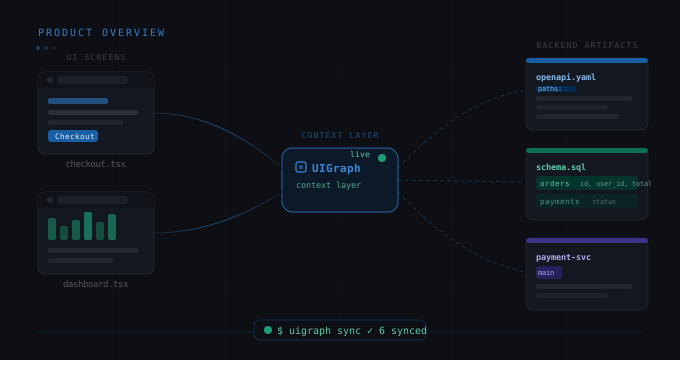
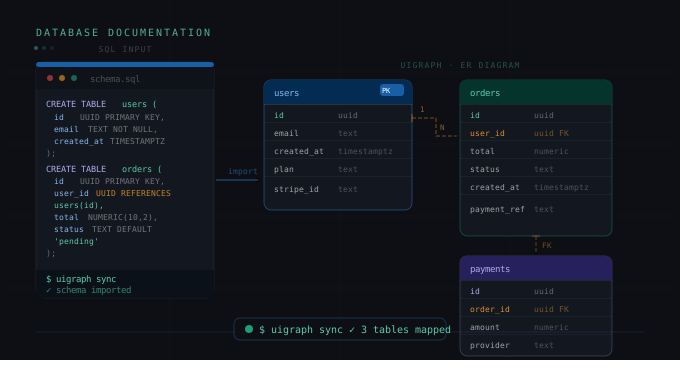
UIGraph's SQL import solves this by generating interactive schema diagrams directly from your SQL files — automatically, every time you sync. No drawing. No manual updates. Just point it at your schema.sql and get a navigable, up-to-date diagram that lives inside your system Map alongside your UI screens and service documentation.
Here's how to do it in under five minutes.
What UIGraph's SQL parser actually does
Under the hood, UIGraph uses AST-based parsing — not regex string matching — to read your SQL schema files. This matters for a few practical reasons:
-
It handles real-world schema files that have comments, non-standard whitespace, and complex constraint declarations.
-
It correctly extracts foreign key relationships even when they're declared separately from the table definitions.
-
It supports MySQL, PostgreSQL, and SQLite dialects with their respective type systems and syntax variations.
The output is an interactive entity-relationship diagram inside UIGraph, not a static image. You can navigate between tables, click on foreign key references to jump to the related table, and link specific tables to the service Maps that own them.
Step 1: Get your schema file ready
UIGraph expects a standard SQL schema file — the kind you'd use for CREATE TABLE migrations or a pg_dump --schema-only export.
For the getorbis.io example, here's a simplified schema for the payments domain:
-- getorbis payments schema
CREATE TABLE users (
  id UUID PRIMARY KEY DEFAULT gen_random_uuid(),
  email VARCHAR(255) UNIQUE NOT NULL,
  created_at TIMESTAMP WITH TIME ZONE DEFAULT NOW(),
  updated_at TIMESTAMP WITH TIME ZONE DEFAULT NOW()
);
CREATE TABLE subscriptions (
  id UUID PRIMARY KEY DEFAULT gen_random_uuid(),
  user_id UUID NOT NULL REFERENCES users(id) ON DELETE CASCADE,
  plan_id VARCHAR(50) NOT NULL,
  status VARCHAR(20) NOT NULL DEFAULT 'active',
  current_period_start TIMESTAMP WITH TIME ZONE,
  current_period_end TIMESTAMP WITH TIME ZONE,
  created_at TIMESTAMP WITH TIME ZONE DEFAULT NOW()
);
CREATE TABLE payment_methods (
  id UUID PRIMARY KEY DEFAULT gen_random_uuid(),
  user_id UUID NOT NULL REFERENCES users(id) ON DELETE CASCADE,
  type VARCHAR(20) NOT NULL,
  last4 CHAR(4),
  expiry_month SMALLINT,
  expiry_year SMALLINT,
  is_default BOOLEAN DEFAULT false,
  stripe_pm_id VARCHAR(100),
  created_at TIMESTAMP WITH TIME ZONE DEFAULT NOW()
);
CREATE TABLE invoices (
  id UUID PRIMARY KEY DEFAULT gen_random_uuid(),
  user_id UUID NOT NULL REFERENCES users(id),
  subscription_id UUID REFERENCES subscriptions(id),
  amount_cents INTEGER NOT NULL,
  currency CHAR(3) NOT NULL DEFAULT 'USD',
  status VARCHAR(20) NOT NULL DEFAULT 'draft',
  due_date DATE,
  paid_at TIMESTAMP WITH TIME ZONE,
  stripe_invoice_id VARCHAR(100)
);
Step 2: Configure the SQL import in .uigraph.yaml
Add a databases block to your .uigraph.yaml:
databases:
  - name: Payments PostgreSQL
    dbType: PostgreSQL
    dialect: postgres
    schemaPath: ./schema.sql
Run uigraph-cli sync and UIGraph will parse the schema and generate the diagram. If you're doing this for the first time without CI set up, you can also use the manual import in the UIGraph web interface — paste or upload your SQL file directly.
Step 3: Navigate the generated diagram
UIGraph renders the schema as an interactive ER diagram inside your Map. Each table is a node showing its column names and types. Foreign key relationships are shown as edges between tables.
For the getorbis.io schema above, you'd see four table nodes — users, subscriptions, payment_methods, and invoices — with edges showing the user_id foreign keys from subscriptions, payment_methods, and invoices pointing back to users, and the subscription_id edge from invoices to subscriptions.
You can click on any table to see its full column list, data types, constraints, and indexes. You can zoom in and out and rearrange the layout.
Step 4: Link tables to your service Maps
This is where the schema diagram becomes more than just a picture. You can place Points on specific tables that link to the service Map that owns them — so an engineer looking at the payment_methods table can click through to the Payment Service Map and see the API endpoints that read and write that table.
The link goes both ways: in the Payment Service Map, you can place Implementation Points on the service Frame that link to the payment_methods table in the schema diagram. The schema and the service documentation become connected pieces of the same system map.
Step 5: Keep it in sync with CI
The workflow that makes this actually useful is running uigraph-cli sync in your CI pipeline on every merge to main. Add this to your GitHub Actions workflow:
name: Sync UIGraph
on:
  push:
    branches: [main]
jobs:
  uigraph-sync:
    runs-on: ubuntu-latest
    steps:
      - uses: actions/checkout@v3
      - name: Install UIGraph CLI
        run: npm install -g @uigraph/cli
      - name: Sync to UIGraph
        run: uigraph-cli sync
        env:
          UIGRAPH_TOKEN: ${{ secrets.UIGRAPH_TOKEN }}
Every time a migration is added to the schema.sql file and merged to main, UIGraph automatically regenerates the diagram. No one has to remember to update the docs. The diagram is always current.
MySQL and SQLite support
The same workflow applies for MySQL and SQLite schemas. The dialect field in your config tells UIGraph which parser to use:
# MySQL
databases:
  - name: Core MySQL Database
    dbType: MySQL
    dialect: mysql
schemaPath: ./schema.sql# SQLite
databases:
- name: Local SQLite
dbType: SQLite
dialect: sqlite
schemaPath: ./schema.sqlMultiple schemas, multiple services
For microservices teams where each service owns its own database, you can have multiple databases blocks — one per service repo, each with its own .uigraph.yaml. Each generates its own schema diagram and lives in its own service Map.
Or if you have a monorepo with multiple services sharing one repo, list multiple databases entries in a single .uigraph.yaml:
databases:
  - name: Payments DB
    dbType: PostgreSQL
    dialect: postgres
    schemaPath: ./services/payments/schema.sql
  - name: Users DB
    dbType: PostgreSQL
    dialect: postgres
    schemaPath: ./services/users/schema.sql
  - name: Catalog DB
    dbType: MySQL
    dialect: mysql
    schemaPath: ./services/catalog/schema.sql
The generated diagrams for each service live in their respective Maps but can be cross-linked via Map Points — so an engineer looking at the orders service Map can click through to the catalog service Map when following a foreign key reference.
What you stop doing once this is set up
Let's be concrete about the work this eliminates:
-
No more manually updating a Lucidchart or draw.io diagram when you add a table.
-
No more "does anyone have an up-to-date schema diagram?" Slack messages.
-
No more new engineers spending half a day reading migration files to understand the data model.
-
No more architecture reviews where the database design is explained verbally because the diagram is wrong.
The schema is the source of truth. UIGraph reads it directly. The diagram is always correct because it's generated, not drawn.